// configuration, right on the device, no computer required

>_ RNode Settings Menu

RNode's settings menu is a small on-device UI built into the firmware. This guide covers opening it, moving around, and what each screen does — no cable, no companion app.

00

Supported boards

The settings menu currently ships on these boards.
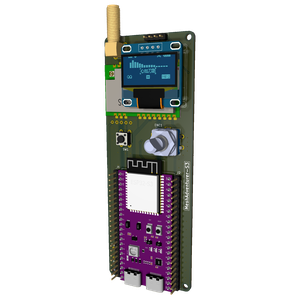
More boards will gain support as the firmware adds them.

01

Opening the menu

Long-press the main button for three seconds to open the menu.

Which settings you see beyond that depends on the board: what's really populated on it (a WiFi chip, an encoder, and so on).

03

What's inside

The top-level list. A few entries only show up on certain boards — noted where it matters.
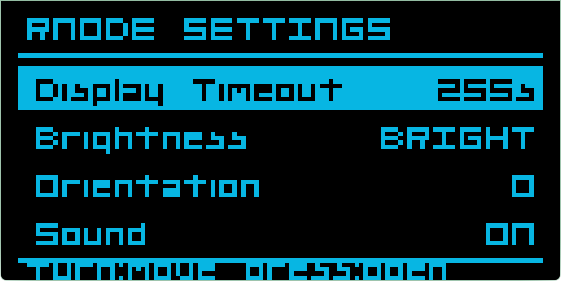
RNode settings menu — top-level list with Display Timeout selected
Top-level menu on a MeshAdventurer-S3 — Display Timeout selected.
Display Timeout
How long the screen stays lit before it blanks to save power.
Brightness
OLED contrast / backlight level.
Orientation
Rotates the display in 90° steps, to match how the board is mounted.
Sound

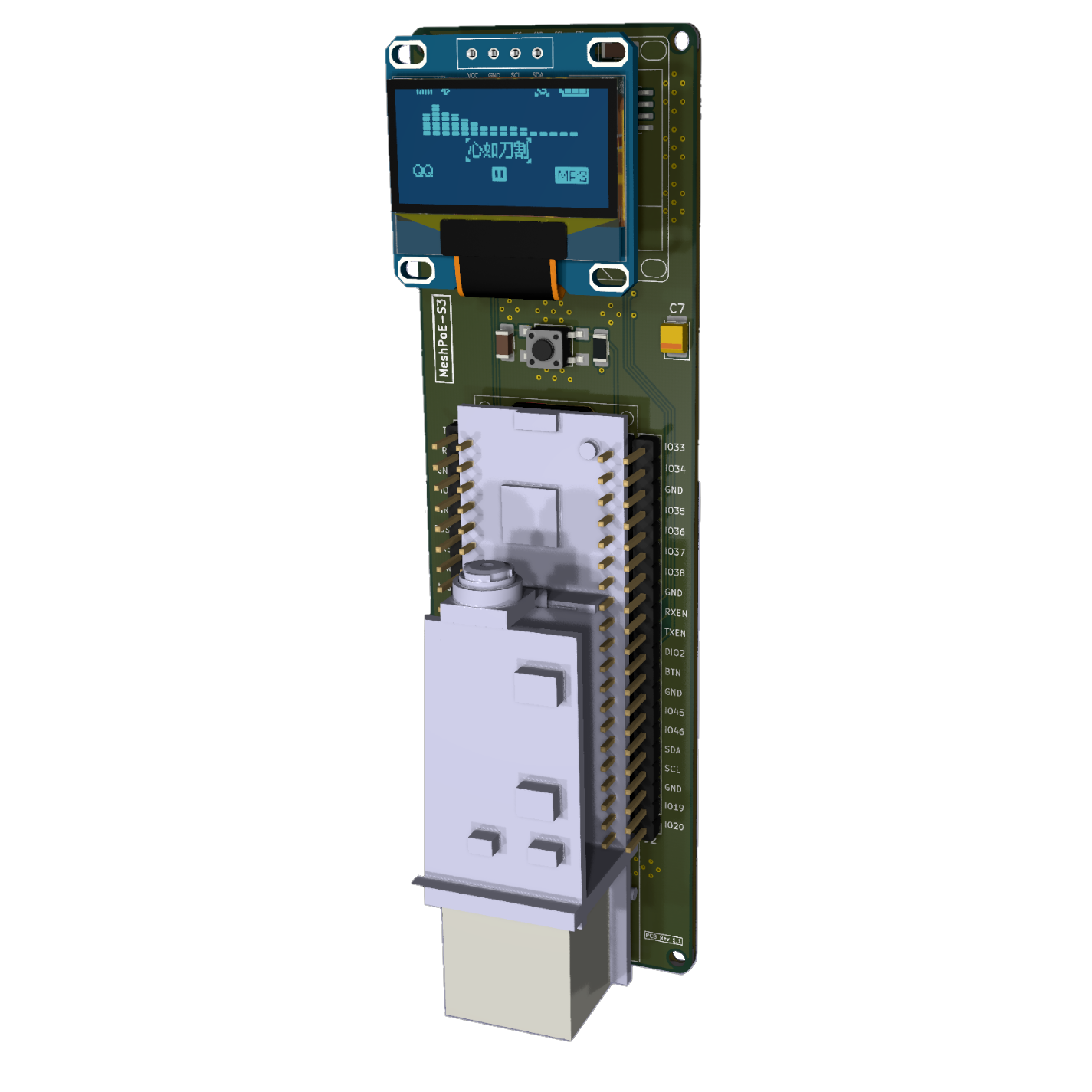
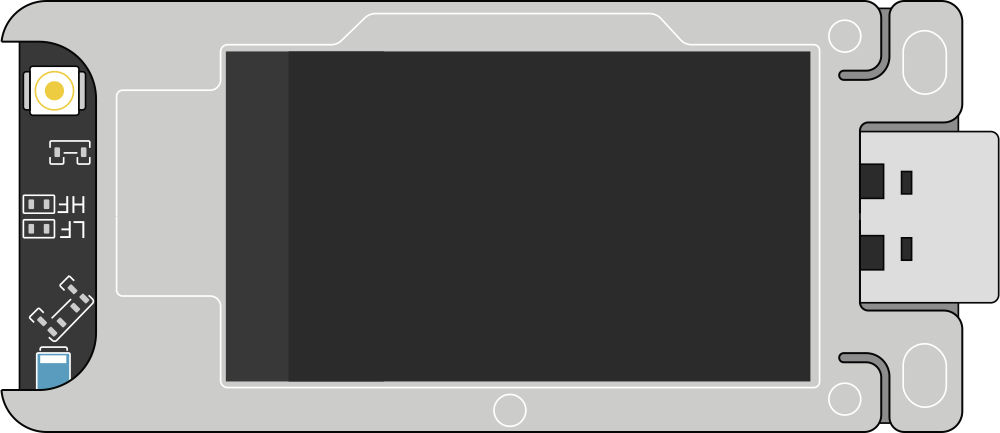
Mutes the buzzer entirely. Off by default on boards where the buzzer is a DIY add-on most builds skip (ProMicro/FakeTec); on by default everywhere else. Doesn't appear at all on boards with no buzzer hardware (Heltec LoRa32 V4, T114, T096, MeshPoE-S3).
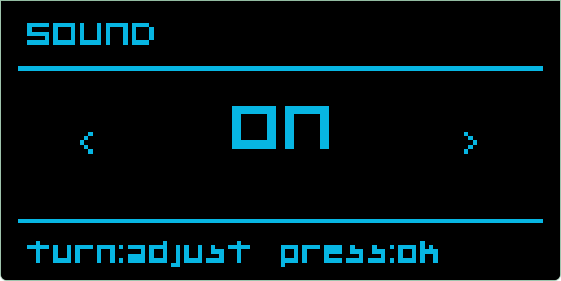
Sound setting switched on
Sound, switched on — turn/click through it, or tap/hold on boards without an encoder.
Encoder encoder-capable boards
Specifies whether a physical rotary encoder is actually populated. Off by default — on both boards it's either a PCB-provisioned but optional part (MeshAdventurer-S3) or a DIY add-on (ProMicro/FakeTec), rather than something guaranteed present. Flips the footer hint between turn/click and tap/hold, and gates the encoder input outright — off, a board with nothing wired to those pins can't misread floating-pin noise as phantom clicks.
WiFi ESP32 + WiFi only

Lets you set the WiFi mode, SSID, and PSK password, entering each character manually with the encoder.
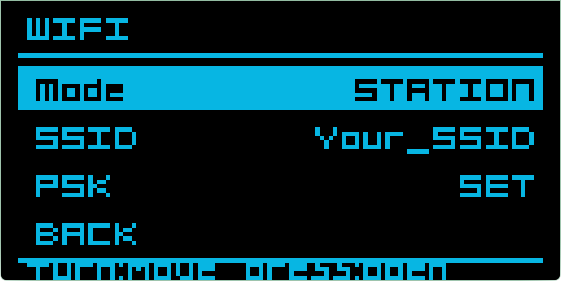
WiFi settings screen showing Mode, SSID, and PSK
WiFi — station mode, SSID, and PSK.
Ethernet MeshPoE-S3 only
Configures the wired port: link status and speed (auto-negotiate, or forced 10/100 full/half duplex), plus IP address, netmask, gateway, and DNS — leave the address fields zeroed for DHCP, or use Clear to reset them back to it. Each field commits to EEPROM as soon as you back out of it, the same immediate pattern as Hardware's Voltage Divider and Battery Cal.
RTC boards with a DS3231 RTC chip (MeshAdventurer-S3, MeshPoE-S3)
Shows the current local time, date, and UTC timezone offset, all read-only here. Set opens a step-through editor for time, date, and timezone; on WiFi-enabled boards, Sync via NTP fetches the time over the network instead of entering it by hand.
Hardware

Diagnostics: CPU temperature (ESP32-S3, nRF52), input voltage, battery voltage, WiFi IP/netmask/MAC, Bluetooth MAC, Ethernet MAC (MeshPoE-S3) — whichever of these your board actually has. Most fields are read-only, but Input Voltage can be clicked to adjust its divider ratio.
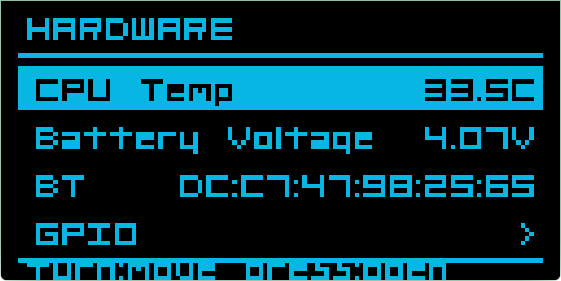
Hardware screen showing CPU temperature, battery voltage, Bluetooth MAC and a GPIO entry
Hardware screen on a board with Bluetooth — CPU temp, battery voltage, BT MAC, and a GPIO entry.
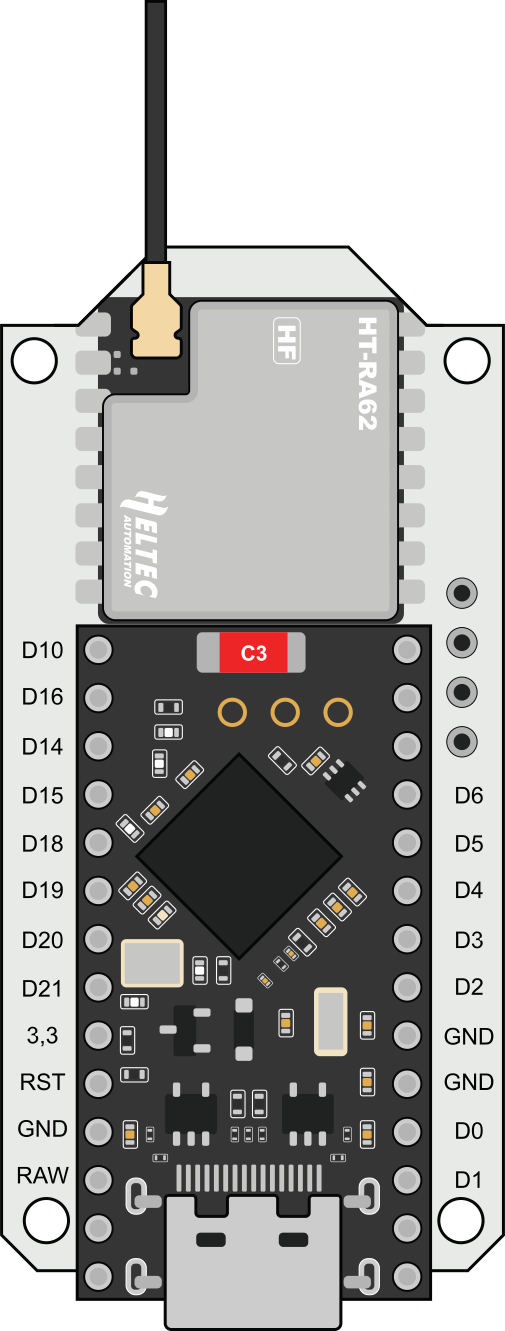
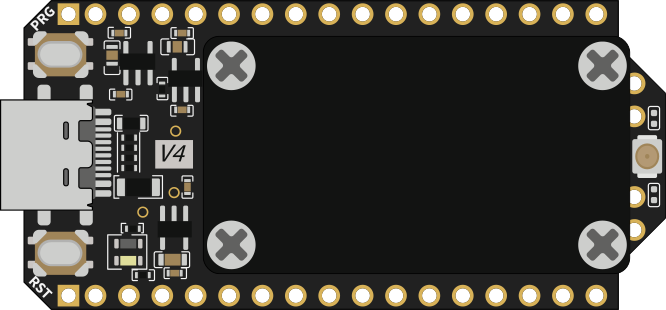
GPIO DIY boards (ProMicro/FakeTec)

Reassigns the buzzer, or the encoder's Up/Down/Press pins, to a different free GPIO — useful since builders wire these to whatever pad was spare. Won't let you assign the same pin twice. Takes effect on the next boot.
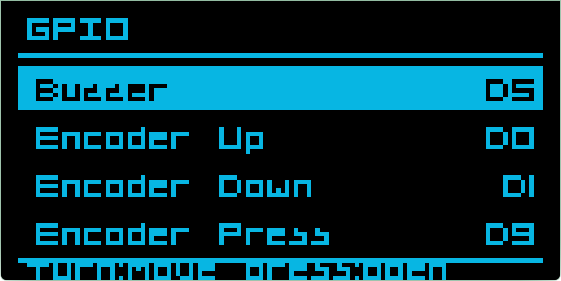
GPIO reassignment screen — buzzer on D5, encoder pins on D0, D1, D9
GPIO — buzzer on D5, encoder on D0/D1/D9.
Battery Cal boards without a real VSENSE divider

Recalibrates the battery percentage scale by hand.
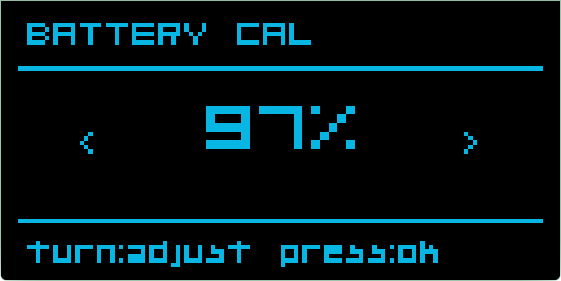
Battery calibration screen set to 97 percent
Battery Cal, adjusted to 97%.
04

Saving changes

Everything you change is staged in RAM while you browse — nothing touches EEPROM, and nothing reboots, until you commit and exit the menu.

Committing writes the changed settings to EEPROM and reboots the device only where a setting actually needs it.

Every move and press gets a short click from the buzzer — unless you've turned Sound off.